Now Reading: White Screen of Death (WSOD) in WordPress – Causes and Fixes
-
01
White Screen of Death (WSOD) in WordPress – Causes and Fixes
White Screen of Death (WSOD) in WordPress – Causes and Fixes
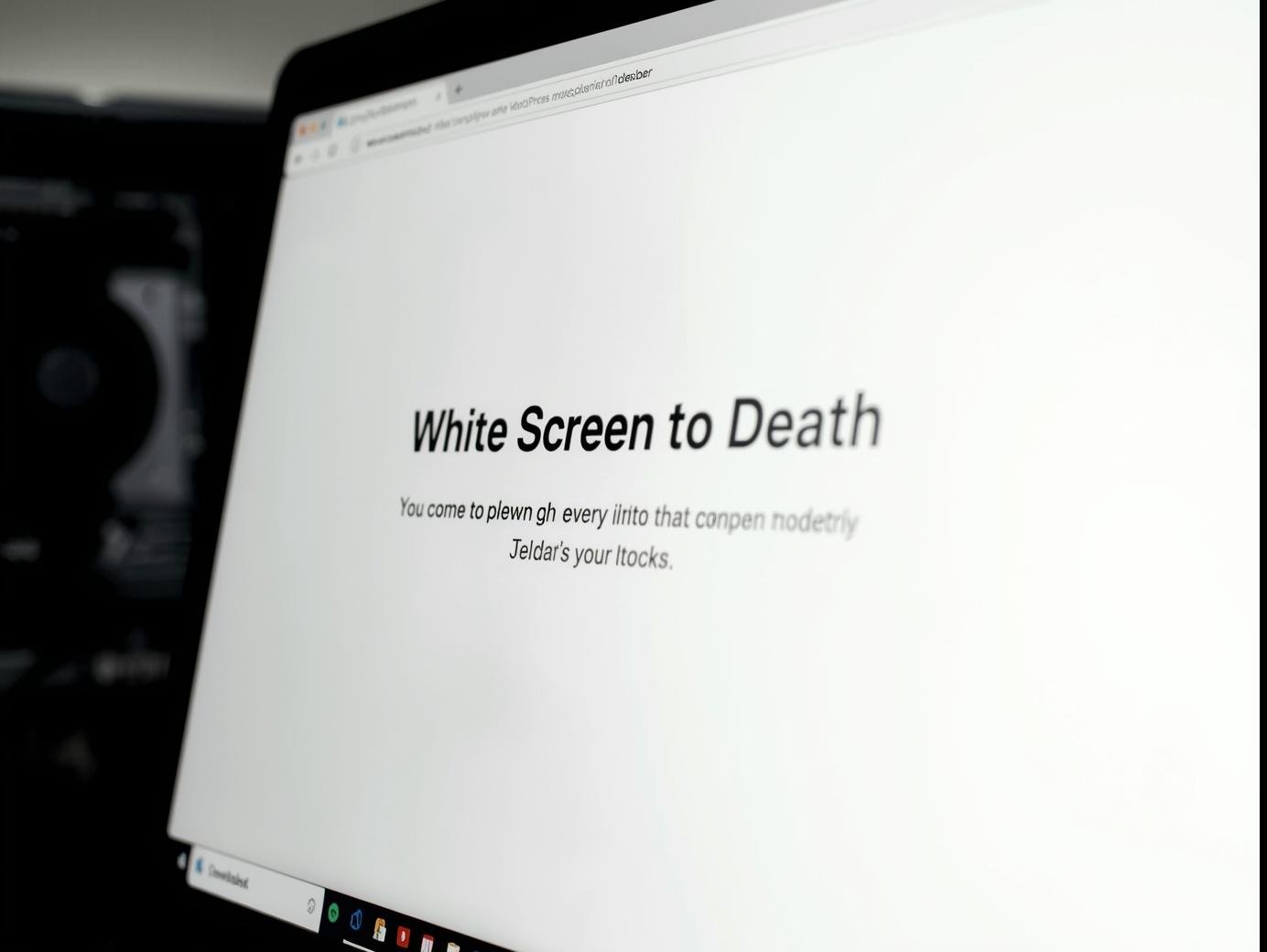
If you are a WordPress website owner, nothing feels worse than opening your site and seeing… nothing. Just a plain white screen with no error message. This is what developers call the White Screen of Death (WSOD).
It’s frustrating because it gives you no clue about what went wrong. But don’t worry—this issue is common, and the good news is that you can fix it. Let’s break it down in simple terms.
What is the White Screen of Death (WSOD)?
The WSOD happens when your WordPress site stops loading properly. Instead of showing your content, it displays a blank screen. This usually indicates a serious error in the code or the server.
Think of it as your website going “silent” instead of telling you what’s wrong.
Common Causes of WSOD
There are a few common reasons why this issue happens:
-
PHP Errors
If there’s a mistake in your theme’s or plugin’s PHP code, it can crash the website. -
Memory Limit Exhausted
Every website has a limit for how much memory it can use. If a plugin or script uses too much, the site stops working. -
Plugin Conflict
Sometimes, two plugins don’t work well together. Updating or activating a new plugin may trigger WSOD. -
Theme Issues
A poorly coded or outdated theme can also break the site. -
Corrupt Files
Incomplete WordPress updates or file corruption may cause the blank screen.
How to Fix the White Screen of Death
Here are some practical steps you can try:
1. Clear Your Cache
Sometimes, the issue is just cached files. Clear your browser cache and any caching plugin you are using.
2. Disable Plugins
-
Go to your hosting File Manager or use FTP.
-
Rename the
pluginsfolder (e.g., toplugins_old). -
Check your website—if it works, then one of your plugins was the problem.
-
Rename the folder back and reactivate plugins one by one to find the culprit.
3. Switch to a Default Theme
-
Temporarily change your theme to a default WordPress theme (like Twenty Twenty-Five).
-
If your site comes back, then your theme is the problem.
4. Increase PHP Memory Limit
-
Open your
wp-config.phpfile. -
Add this line:
-
This gives WordPress more memory to work with.
5. Enable Debug Mode
-
Add the following line to
wp-config.php: -
This will show you errors instead of a blank screen, making it easier to diagnose.
6. Reinstall WordPress Core Files
If files are corrupted, download a fresh copy of WordPress and upload it (without touching the wp-content folder).
Preventing Future WSOD Problems
-
Keep your plugins and themes updated.
-
Only install trusted plugins.
-
Regularly back up your website.
-
Monitor your server’s performance.
Prevention is always better than cure.
Final Thoughts
The White Screen of Death may look scary, but it’s not the end of your website. With a little patience, you can fix it by following the steps above.
If you don’t feel confident making changes yourself, contact your hosting support or a WordPress expert.
Your website deserves to stay alive and healthy—don’t let the WSOD stop you from growing online.
👉 Visit SmartLifeSol.com for more guides and solutions to keep your digital journey smooth.