Now Reading: Plugin Update Failures in WordPress – Why They Happen and How to Fix Them
-
01
Plugin Update Failures in WordPress – Why They Happen and How to Fix Them
Plugin Update Failures in WordPress – Why They Happen and How to Fix Them
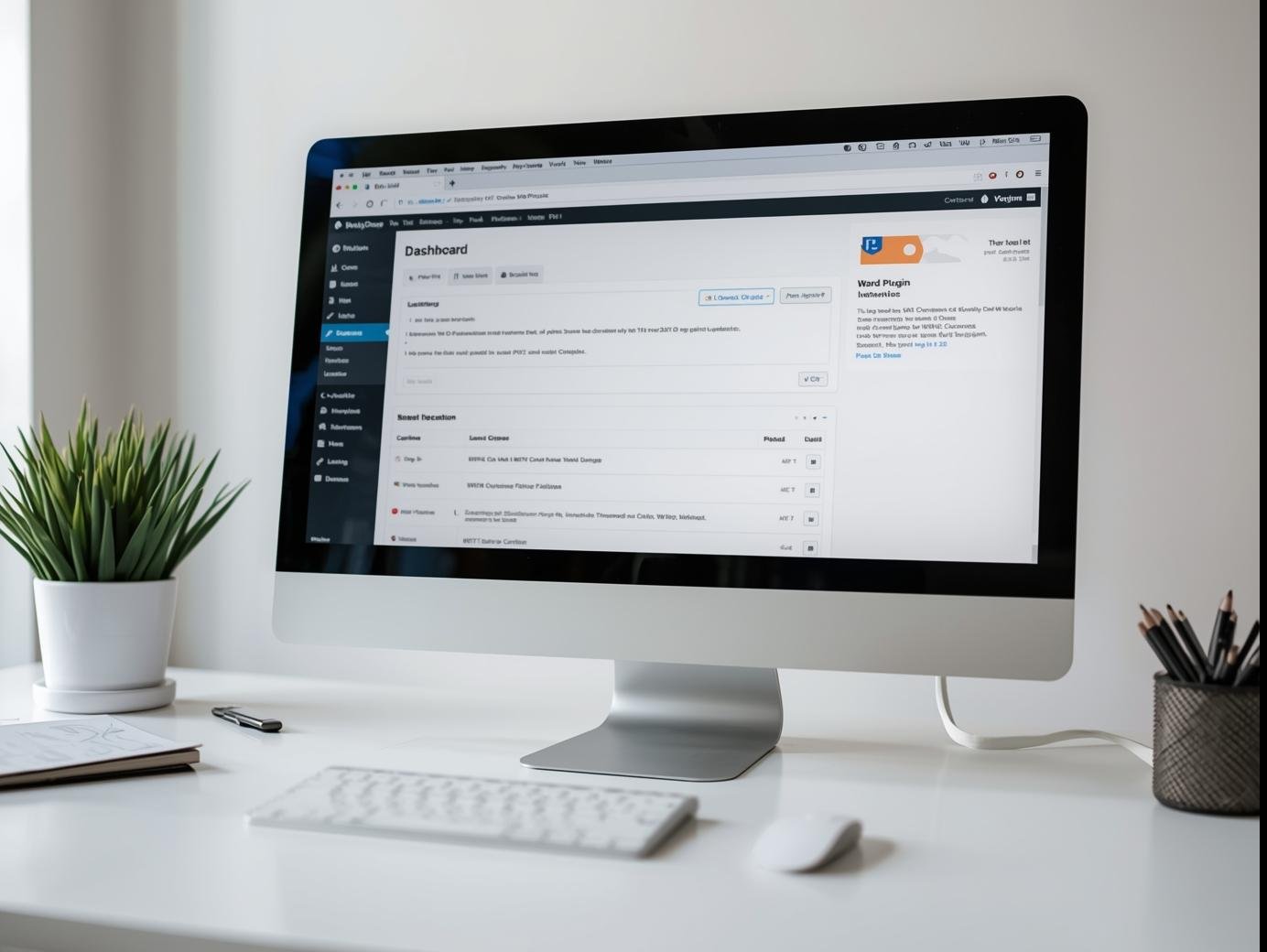
Managing a WordPress website is exciting, but sometimes small technical issues can turn into big problems. One of the most common challenges website owners face is plugin update failures. Imagine you press the “update” button, but instead of a smooth process, the update gets stuck, incomplete, or worse – your site goes down.
If you run a site like Smart Life Solutions, downtime means lost visitors and poor user experience. In this blog, we’ll explore why plugin update failures happen and how you can fix them without stress.
Why Plugin Updates Are Important
Plugins are the backbone of WordPress websites. They add features like SEO tools, security, backups, and design enhancements. But outdated plugins can cause:
-
Security risks
-
Slow website speed
-
Compatibility issues with WordPress core or themes
That’s why updates are necessary – but sometimes, they don’t go as planned.
Common Reasons for Plugin Update Failures
-
Low Server Resources
If your hosting plan has limited memory or bandwidth, updates may not complete successfully. -
File Permission Errors
Incorrect file permissions in your WordPress installation can block updates. -
Conflict with Other Plugins or Themes
Sometimes one plugin update clashes with another plugin or theme, leading to a failed update. -
Unstable Internet Connection
If the connection drops during an update, the process gets stuck. -
Corrupt or Incomplete Download
A plugin file might not download properly from the WordPress repository or developer’s server.
How to Fix Plugin Update Failures
-
Enable Maintenance Mode First
Always put your site into maintenance mode before updating. This avoids downtime if things go wrong. -
Update One Plugin at a Time
Instead of updating all plugins at once, update them individually. This helps you identify the exact plugin causing issues. -
Check File Permissions
Ensure yourwp-contentandwp-pluginsfolders have correct file permissions (usually 755 for folders, 644 for files). -
Increase PHP Memory Limit
In yourwp-config.phpfile, you can add:This prevents resource exhaustion during updates.
-
Use Manual Update via FTP
-
Download the latest plugin version from WordPress.org or the developer’s site
-
Delete the old plugin folder using FTP
-
Upload the new one manually
-
-
Check Error Logs
Your hosting cPanel or WordPress debug mode can show what’s blocking the update.
Preventing Future Plugin Update Failures
-
Choose reliable hosting with enough resources.
-
Use reputable plugins that update regularly.
-
Always take a full site backup before updates.
-
Keep your WordPress version updated for compatibility.
Final Thoughts
Running a smooth website is all about preparation. Plugin update failures may sound scary, but with the right steps, you can fix and even prevent them. Regular backups, strong hosting, and careful updates will keep your site safe and functional.
If you are managing a website like Smart Life Solutions, taking these precautions will help you avoid downtime and maintain a professional online presence.
🔗 Visit Smart Life Solutions for more helpful guides and solutions to keep your digital journey stress-free.