Have you ever seen the dreaded “Update stuck during installation” error in WordPress or other platforms? It’s a common issue that can freeze your website and leave you frustrated. Don’t worry — there’s a reliable solution. In this guide, we’ll explain step by step how you can fix this problem by manually updating via FTP. This method works not only for WordPress but also for themes, plugins, and even CMS core files.
Before we begin, here’s a quick resource for professional help with website troubleshooting, design, and maintenance: Next Level Design Agency. Their expert team can save you time and prevent costly mistakes.
Why Does Update Get Stuck During Installation?
When updating WordPress, plugins, or themes, the system usually downloads the update, unpacks it, and installs it automatically. However, sometimes the process gets stuck. The most common reasons include:
- Server timeout or limited PHP memory
- Slow internet or interrupted connection
- Incorrect file permissions
- Corrupted update files
- Conflict with other plugins or themes
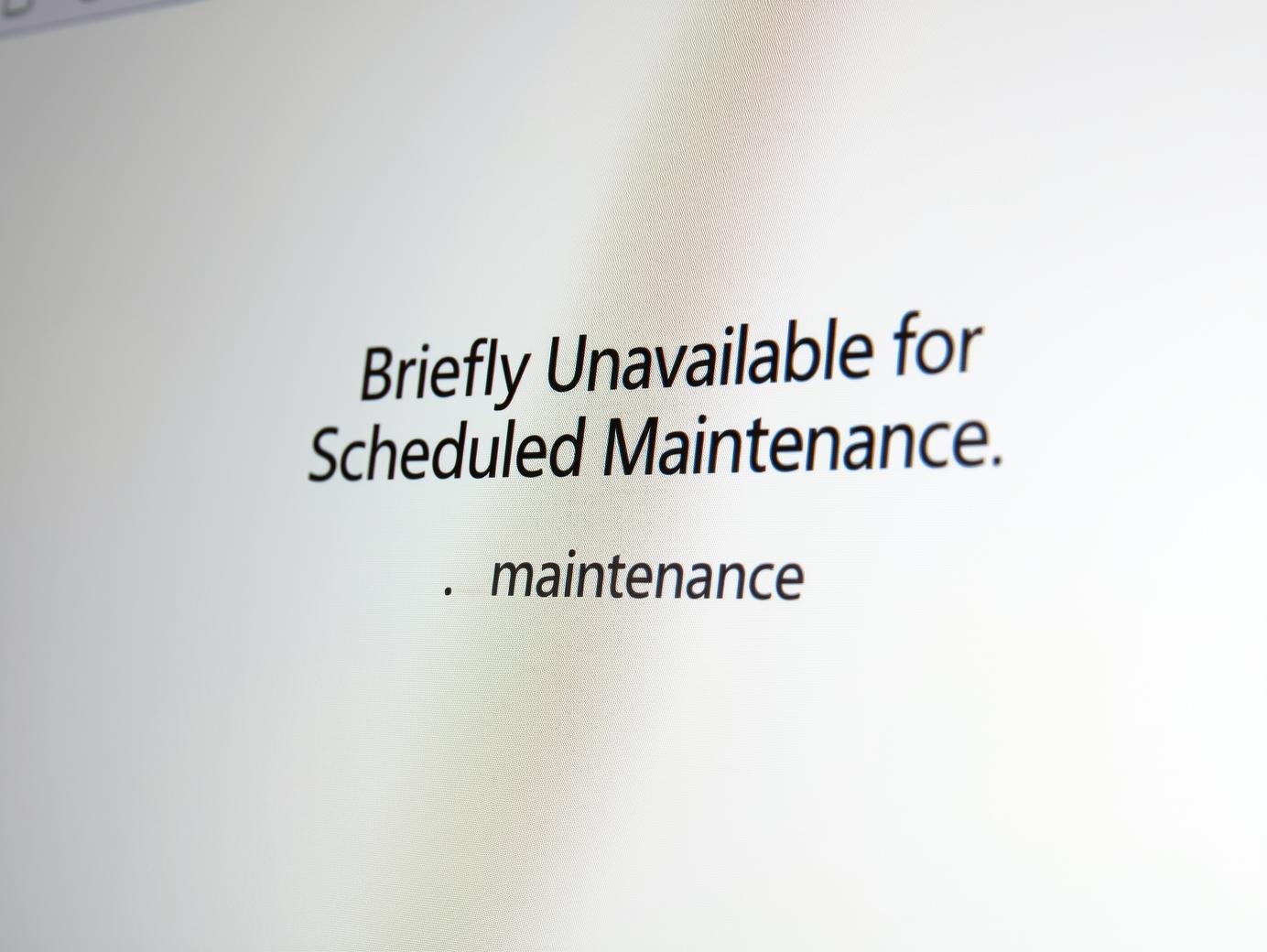
When this happens, you might see a message like “Briefly unavailable for scheduled maintenance. Check back in a minute.” But instead of resolving, it just stays there. That’s when you need manual action.
Why Choose FTP for Manual Updates?
FTP (File Transfer Protocol) allows you to directly access and manage files on your web server. With an FTP client such as FileZilla or Cyberduck, you can upload, replace, or delete files safely. This method ensures full control and bypasses automatic update errors.
Step-by-Step Guide: Fix Update Stuck via FTP
Step 1: Backup Your Website
Before making any changes, always back up your website. You can use plugins like UpdraftPlus or manually download your files and database. A backup guarantees that even if something goes wrong, your data is safe.
Step 2: Download the Latest Version
Go to the official source (WordPress.org for WordPress core, or the plugin/theme’s official page) and download the latest .zip file. Keep it on your computer for extraction.
Step 3: Extract the Files
Unzip the downloaded file. You’ll see folders like wp-admin, wp-includes, and other core files if you’re updating WordPress. For plugins/themes, you’ll see their respective folders.
Step 4: Connect to Your Server via FTP
Open your FTP client, enter your hosting credentials (host, username, password, port), and connect to your server. These credentials are usually available in your hosting control panel.
Step 5: Locate Your Website Directory
Once connected, navigate to your website’s root folder, often named public_html or www. Inside, you’ll see your WordPress files and directories.
Step 6: Upload and Replace Files
Upload the extracted files from your computer to the server. When prompted, choose Overwrite existing files. This ensures the corrupted or incomplete files are replaced with fresh ones.
Step 7: Remove the Maintenance File
Sometimes, WordPress creates a .maintenance file during updates. If the update gets stuck, this file might remain and block access. Locate and delete it from your root directory.
Step 8: Test Your Website
Now refresh your website. It should load normally with the new update applied. If you face any issues, restore your backup and try again.
Best Practices for Manual FTP Updates
- Always back up your files and database.
- Use a reliable FTP client to avoid transfer interruptions.
- Check file permissions after upload (usually 644 for files and 755 for folders).
- Update plugins and themes one at a time to avoid conflicts.
- Clear your browser cache and WordPress cache after updates.
When to Seek Professional Help?
If you are not confident in handling FTP updates or your site is business-critical, it’s better to seek professional help. A mistake in file handling can break your website. The team at Next Level Design Agency specializes in website troubleshooting, development, and maintenance. They ensure your updates are done smoothly without downtime.
Conclusion
Getting stuck during installation updates can be stressful, but with FTP, you have full control to fix it. By carefully following the steps outlined above — backup, download, extract, connect, upload, and test — you can manually update your website and keep it running smoothly.
For those who prefer professional support, Next Level Design Agency is always ready to help with website maintenance, troubleshooting, and upgrades.
Keep your website updated, secure, and performing at its best — because your online presence deserves nothing less.