Having trouble logging into your WordPress website after installing an SSL certificate? You’re not alone. Many website owners face SSL/HTTPS login issues when they shift their site from http:// to https://.
In this complete guide, we’ll explain why these errors occur, how to update your WordPress Address and Site Address in settings, and what additional steps you can take to secure your site.
👉 Need professional WordPress help? Visit Next Level Design Agency for expert web design and WordPress solutions.
Why SSL/HTTPS Matters in WordPress
SSL (Secure Sockets Layer) ensures that the connection between your website and your visitors’ browsers is secure. Without it, sensitive data like passwords, payment details, and personal information could be intercepted.
- ✅ Builds trust with your audience
- ✅ Improves your website’s SEO rankings
- ✅ Essential for eCommerce and login-based sites
- ✅ Prevents “Not Secure” warnings from browsers
Common SSL/HTTPS Login Issues in WordPress
After activating an SSL certificate, many WordPress users experience these problems:
- Endless redirect loops (site keeps refreshing)
- Mixed content warnings (some elements still load via HTTP)
- Unable to log in – login page not loading properly
- “Too many redirects” error message
- Broken CSS or JavaScript after switching to HTTPS
Step 1: Update WordPress Address & Site Address
The first step to solving HTTPS login issues is to update your WordPress URL settings.
Method 1: Update from WordPress Dashboard
- Log in to your WordPress admin dashboard.
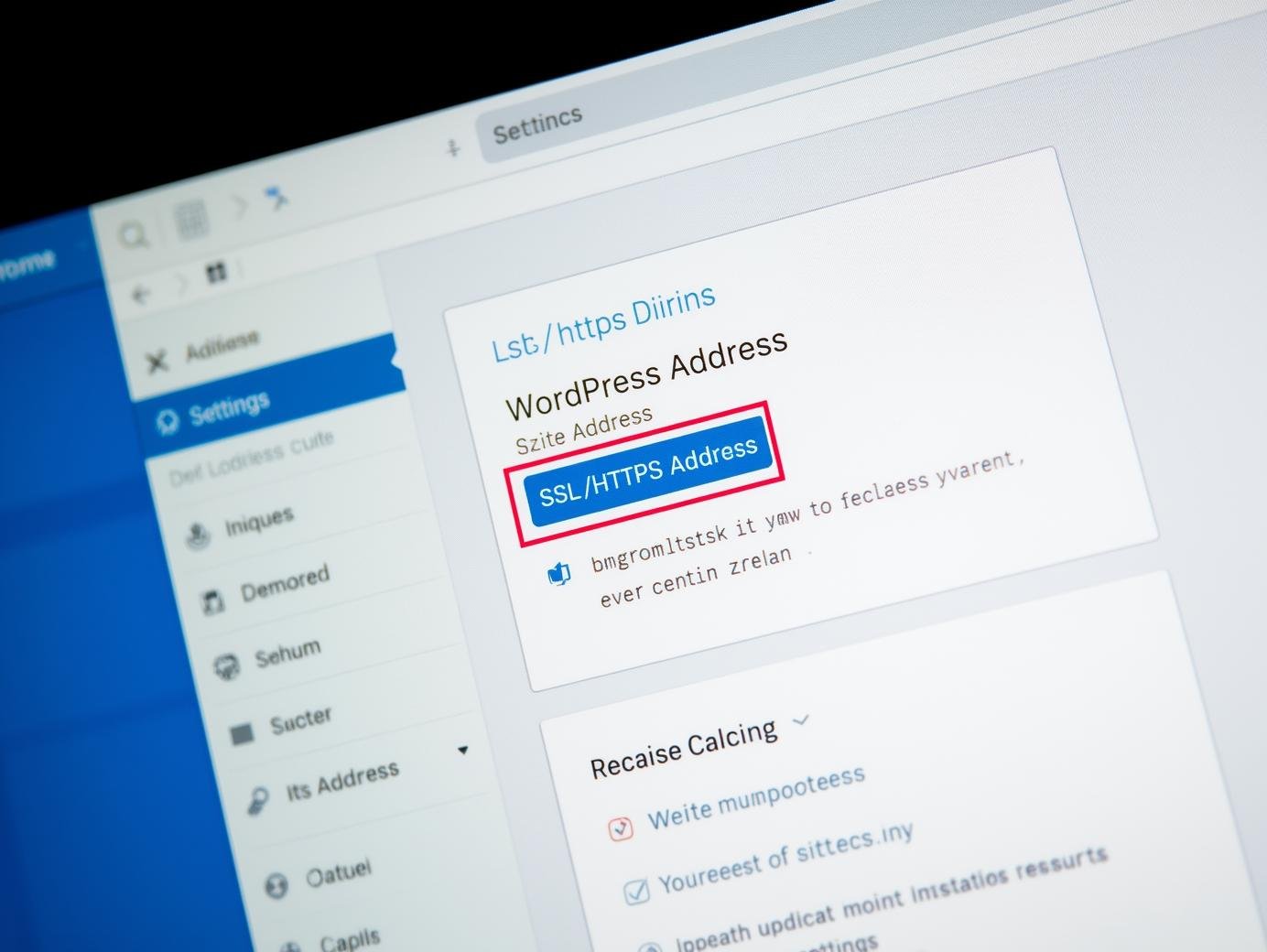
- Go to Settings → General.
- Update both fields:
- WordPress Address (URL)
- Site Address (URL)
- Change
http://tohttps://. - Click Save Changes.
Method 2: Update via wp-config.php
If you can’t access the dashboard, update the URLs manually:
define('WP_HOME','https://yourdomain.com');
define('WP_SITEURL','https://yourdomain.com');
Method 3: Update via Database (phpMyAdmin)
- Login to your hosting control panel.
- Open phpMyAdmin and select your WordPress database.
- Find the table
wp_options. - Edit the values for
siteurlandhome. - Replace
http://withhttps://.
Step 2: Redirect All Traffic to HTTPS
Even after updating WordPress and Site Address, some pages may still load via HTTP. To fix this:
Edit .htaccess File
RewriteEngine On
RewriteCond %{HTTPS} !=on
RewriteRule ^(.*)$ https://%{HTTP_HOST}%{REQUEST_URI} [L,R=301]
Step 3: Fix Mixed Content Issues
Mixed content occurs when some resources (images, CSS, JS) load via HTTP. To fix:
- Install a plugin like Really Simple SSL.
- Manually update hardcoded URLs in your theme or database.
- Use a search-and-replace tool to change all HTTP links to HTTPS.
Step 4: Clear Cache & Cookies
Sometimes, browsers cache old URLs. Clear:
- WordPress cache (if using plugins like W3 Total Cache, WP Rocket)
- Browser cache and cookies
- CDN cache (if using Cloudflare or similar services)
Step 5: Test Your SSL Setup
After making the changes, test your site with:
- SSL Labs Test
- Browser console (check for mixed content errors)
- Try logging in/out multiple times to confirm no redirect loops
Bonus Tips for Secure WordPress Login
- Always use the latest version of WordPress and plugins
- Enable two-factor authentication (2FA) for extra security
- Use strong, unique passwords
- Install a security plugin like Wordfence or iThemes Security
Conclusion
Fixing SSL/HTTPS login issues in WordPress may seem complicated, but with the right steps, it’s a straightforward process. By updating your WordPress Address and Site Address, setting up redirects, fixing mixed content, and clearing cache, you can ensure your website runs smoothly on HTTPS.
Remember, SSL is not just about removing browser warnings—it’s about protecting your visitors and improving SEO. If you still face issues or want a professional team to handle your WordPress website, reach out to Next Level Design Agency for expert help.