How to Fix “Briefly Unavailable for Scheduled Maintenance” – Delete .maintenance File (Complete Guide)
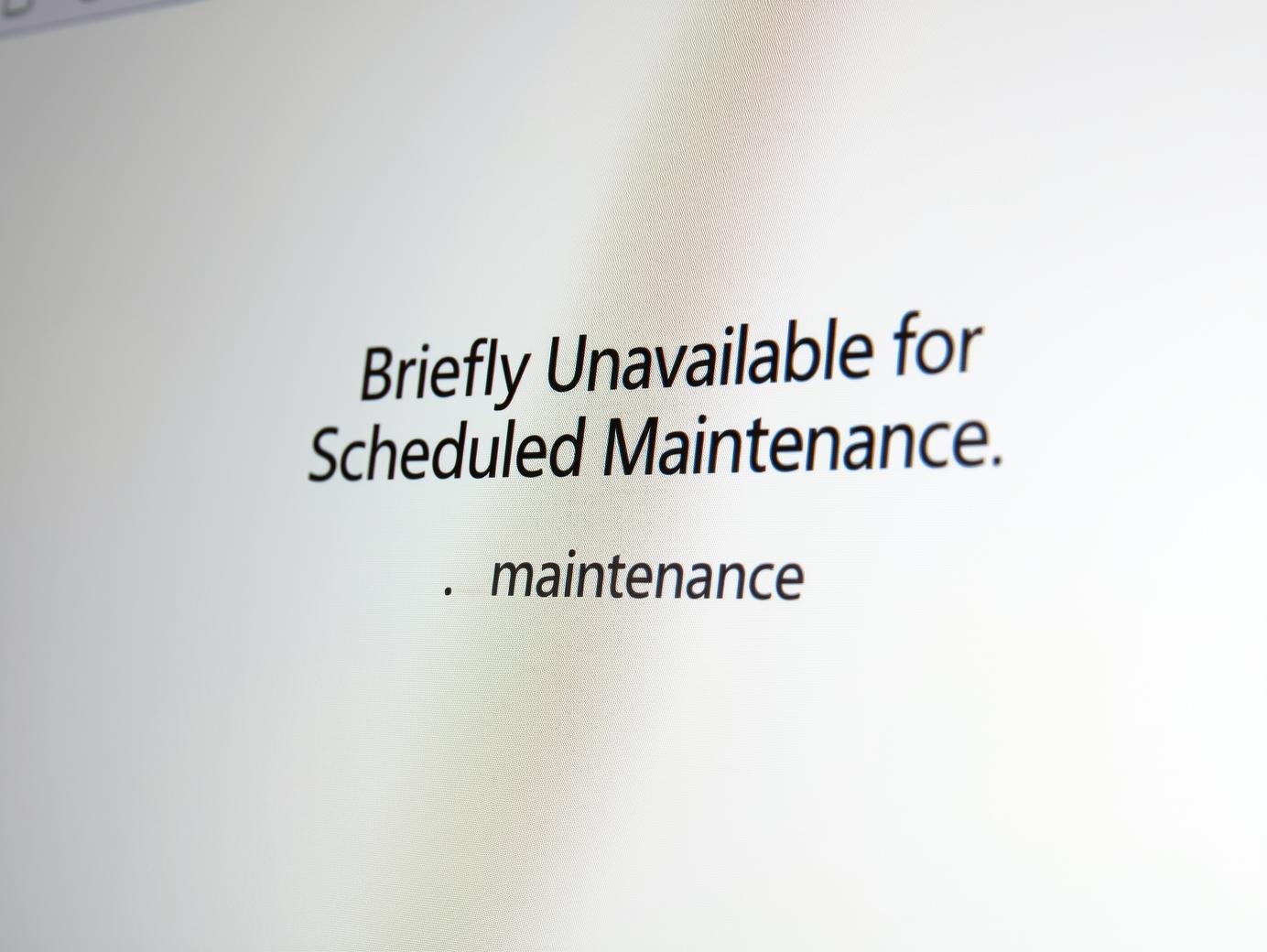
If you are a WordPress user, you might have faced the frustrating error that says: “Briefly Unavailable for Scheduled Maintenance. Check back in a minute.” This message usually appears when you update plugins, themes, or WordPress itself. The problem is that sometimes this error does not go away automatically, leaving your entire website stuck in maintenance mode. Don’t panic — fixing this issue is simple. In this guide, we will explain why this happens and how you can quickly fix it by deleting the .maintenance file.
Why Does WordPress Show the Maintenance Mode Error?
Whenever you update plugins, themes, or the WordPress core, the system temporarily puts your site into maintenance mode. During this time, WordPress creates a hidden file called .maintenance in the root directory of your site. Once the update is finished, this file should automatically be removed. However, if the update is interrupted (due to slow internet, server timeout, or compatibility issues), the file remains and your site gets stuck in maintenance mode.
Common Reasons for Getting Stuck in Maintenance Mode:
- Interrupted or failed update process.
- Updating too many plugins at once.
- Low server resources or timeout errors.
- Incompatible plugins or themes.
How to Fix the Error Step by Step
Step 1: Access Your Website Files
You will need to access the backend of your website. There are two easy ways to do this:
- Via cPanel File Manager: Log in to your hosting account and open the File Manager tool.
- Via FTP Client: Use an FTP client like FileZilla to connect to your site.
Step 2: Locate the .maintenance File
Once you are inside your site’s root directory (usually called public_html), look for a file named .maintenance. If you can’t see it, make sure hidden files are visible in your File Manager or FTP settings.
Step 3: Delete the File
Simply delete the .maintenance file from the root directory. After deleting, refresh your website. It should be back to normal instantly.
Preventing the Maintenance Mode Error in the Future
To avoid running into this issue again, follow these best practices:
- Update one plugin at a time instead of updating all at once.
- Always backup your site before updates.
- Choose reliable hosting with good server resources.
- Make sure plugins and themes are compatible with your WordPress version.
Alternative Fix (If the Issue Persists)
If deleting the .maintenance file does not solve the issue, try these methods:
- Clear cache: Browser cache or CDN cache might be showing the error page.
- Manually update WordPress: Download the latest WordPress files and replace them via FTP (except
wp-contentfolder andwp-config.php). - Deactivate plugins: Temporarily rename the
pluginsfolder to check if any plugin caused the issue.
SEO Benefits of Fixing Maintenance Errors Quickly
Search engines like Google don’t like downtime. If your website stays stuck in maintenance mode for too long, it can negatively impact your SEO rankings. By fixing this error quickly, you ensure that your website remains accessible to both users and search engines. This improves user experience, reduces bounce rates, and keeps your site ranking strong.
Conclusion
The “Briefly Unavailable for Scheduled Maintenance” error is common in WordPress, but the solution is very simple — just delete the .maintenance file from your root directory. By following the steps in this guide, you can bring your website back online within minutes. Additionally, adopting preventive measures will help you avoid getting stuck in maintenance mode again.
For professional WordPress support, website design, or digital solutions, visit Next Level Design Agency.