Now Reading: 500 Internal Server Error – Common Causes and Easy Fixes
-
01
500 Internal Server Error – Common Causes and Easy Fixes

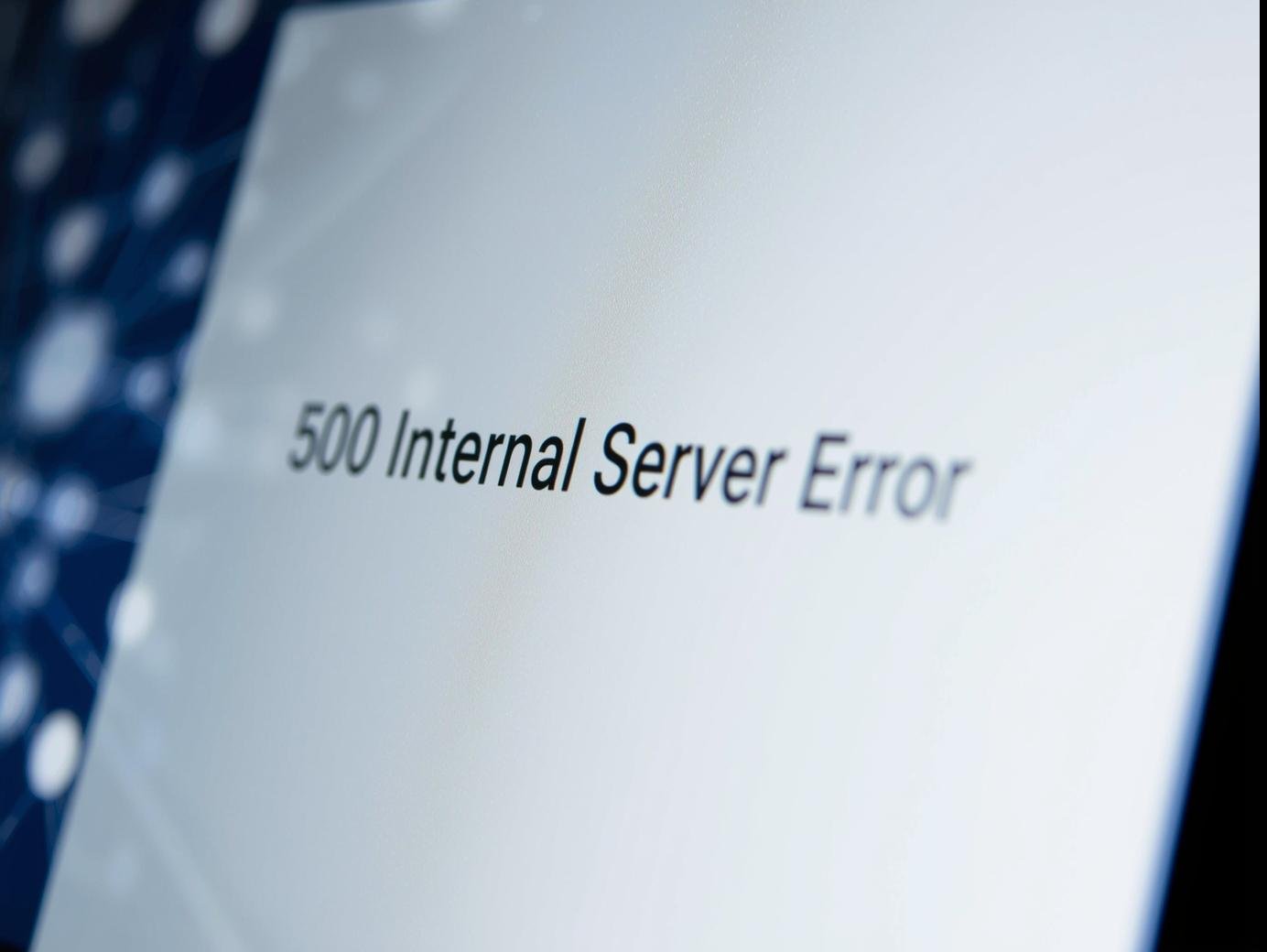
If you run a website, few things are more frustrating than seeing the dreaded “500 Internal Server Error” appear on your screen. This error not only confuses visitors but can also affect your site’s SEO and overall credibility. The good news is, most of the time, the problem is not permanent and can be fixed with a few simple steps.
In this post, we’ll explore why a 500 Internal Server Error happens and what you can do to solve it effectively.
What is a 500 Internal Server Error?
A 500 Internal Server Error means something went wrong on the server, but the system cannot identify the exact issue. Unlike other errors (like 404 Not Found), a 500 error is more generic. It simply tells you that the server is unable to process the request due to misconfigurations or conflicts.
Common Causes of 500 Internal Server Error
-
Corrupted or Misconfigured .htaccess File
The.htaccessfile controls server settings for your website. A single incorrect line of code can cause your whole site to go down. -
PHP Conflicts
Outdated PHP versions, bad scripts, or incompatible themes and plugins in WordPress often trigger this error. -
Exceeding PHP Memory Limit
If your website uses too many resources, such as heavy plugins or large databases, it can hit the memory limit and display a 500 error. -
Plugin or Theme Issues
A poorly coded plugin or a recent update might cause conflicts with your site’s existing setup. -
File Permission Errors
Incorrect file or folder permissions can prevent the server from reading your site files properly.
How to Fix 500 Internal Server Error
Here are some practical solutions that usually work:
1. Check the .htaccess File
-
Login to your hosting panel or via FTP.
-
Rename
.htaccessto.htaccess_old. -
Refresh your site. If it works, generate a new
.htaccessby going to WordPress Dashboard > Settings > Permalinks > Save Changes.
2. Increase PHP Memory Limit
-
Edit your wp-config.php file.
-
Add the line:
-
This will give your website more memory to run smoothly.
3. Disable Plugins and Themes
-
Deactivate all plugins from the WordPress admin area (or rename the plugins folder via FTP).
-
If the site loads, reactivate plugins one by one to find the culprit.
-
Switch temporarily to a default theme like Twenty Twenty-Four to rule out theme conflicts.
4. Check File Permissions
-
Set folder permissions to 755 and files to 644.
-
This ensures the server can access your site’s files correctly.
5. Contact Your Hosting Provider
If none of the above steps work, the issue might be on the server side. Reach out to your hosting provider’s support team. They can check server logs and provide a fix.
Final Thoughts
A 500 Internal Server Error may look scary, but with the right approach, you can troubleshoot and fix it quickly. Whether it’s a .htaccess problem, a PHP conflict, or a plugin issue, the key is to test each step carefully and avoid panicking.
At SmartLifeSol.com, we believe in making technology simple and practical for everyone. If you face this error, just follow the steps above, and you’ll have your website running smoothly in no time.